Platform Module
WebEDI
Inbound transaction → validated → business documents created
WebEDI is the document highway between companies: partners send inbound transactions (POs, ASNs, invoices), the system validates and maps them, then creates real business documents (Purchasing/Warehouse/Transportation/Finance). Invalid transactions are rejected with clear, friendly reasons and admin-only troubleshooting tools.
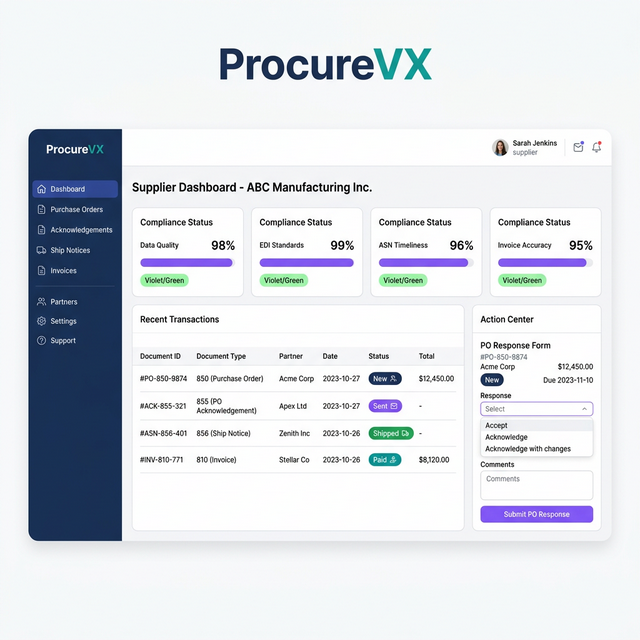
Common WebEDI Challenges — And How We Fix Them
Small suppliers can't do EDI
Browser-based portal — no EDI software needed
Partner onboarding takes months
Self-service signup and guided first transaction
No visibility into partner compliance
Real-time compliance dashboard per partner
Capabilities
What WebEDI Can Do
Inbound transactions inbox
A single “inbox” for partner messages with filters and search so teams can triage what’s received, processed, rejected, or needs review.
Validation + mapping engine
Validate format and required fields, apply partner mappings, and present clear error messages that point to exactly what needs fixing.
Processed vs rejected outcomes
A status timeline shows what happened and why. Rejected transactions include reason codes and actionable messages.
Created documents panel (single/multiple)
Processed transactions create one or many system documents (PO/ASN/Invoice). Users can open each created document to continue the workflow.
Duplicate detection + linking
Prevent repeated work by detecting duplicates and linking inbound messages to existing created documents instead of creating again.
Logs, payload, and controlled reprocess
Admins can inspect processing logs and view raw payload read-only. Permissioned reprocessing supports safe retries while preserving audit history.
End-to-End Flow
End-to-end lifecycle (Inbound → Validated → Created documents)
A demo-friendly WebEDI flow: a partner sends a transaction, the system validates and maps it, then either creates business documents or rejects with clear reasons — with admin monitoring and controlled reprocessing.
- Step 1
Partner sends inbound transaction
A trading partner sends structured data (PO/ASN/Invoice) instead of a manual email. The system confirms receipt and identifies the partner/source.
- Step 2
Inbound queue visibility
Transactions land in a single inbox with processing status. Filters and search support fast triage by partner, document number, date, and state.
- Step 3
Validation and mapping
The system checks format and required fields and applies partner mappings. Failures show clear, actionable messages; admins may view raw payload read-only.
- Step 4
Processed vs rejected outcome
If valid, processing continues. If invalid, the transaction is rejected and no business document is created — with reason codes and a status timeline.
- Step 5
Create business document(s)
Processed transactions create usable documents: PO (Purchasing), ASN/shipment notice (Warehouse/Transportation), and Invoice (Finance). Links connect transaction → created documents.
- Step 6
Multi-document scenarios
One inbound file can create multiple orders/shipments/invoices. The transaction shows a clean list of created docs with type + number and click-through navigation.
- Step 7
Monitoring, audit, and controlled reprocessing
Admins review processing logs and payloads, detect duplicates, and reprocess when appropriate under permission controls — preserving audit history and safe outcomes.
30 Seconds to Your "Aha" Moment
Watch how ProcureVX replaces fragmented tools with one unified platform — automatically, accurately, and at a fraction of the cost.
Platform Walkthrough
From PO to Payment in 30 seconds
Who It's For
Built for partners, admins, and the teams who execute the work.
Partners need confirmation and transparency, admins need control and troubleshooting, and business users need fast navigation to the created PO/ASN/Invoice.
Trading Partner (sender)
Sends EDI/portal documents and needs confidence that messages were received and processed.
- Submit inbound documents (PO, ASN, invoice) via portal/EDI channels
- See confirmation that a transaction was received with partner identification
- Get clear processed vs rejected outcomes (and why) to correct and resend
EDI / Portal Admin
Configures partners/mappings and resolves processing issues safely.
- Manage partner setups and mappings that drive field conversions
- Review validation failures with specific field/segment reasons
- View raw payload (read-only) and processing logs for troubleshooting
- Reprocess transactions under permission control and track audit history
Business User (buyer/supplier)
Works the created documents inside Purchasing, Warehouse, Transportation, or Finance.
- Open the created PO/ASN/Invoice directly from the transaction
- Handle multi-document transactions (one file creates many documents)
- See duplicate/linking signals so work isn’t accidentally repeated
Expected Outcomes
- Fewer manual emails and faster document processing for partners and internal teams
- Cleaner downstream execution because documents are validated before creation
- Faster exception resolution with clear rejection reasons and admin diagnostics
- Lower duplicate risk through linking and controlled reprocessing
Governance (RBAC) for safe processing and troubleshooting
- View inbound transactions and processing outcomes
- Open created documents (PO/ASN/Invoice) to continue work
- See validation/error summaries (non-admin-safe)
- View payloads (read-only) and detailed processing logs
- Manage partner mappings and configuration
- Reprocess transactions (permission-controlled) with audit trail
- Resolve duplicates by linking to existing created documents
Acceptance criteria highlights
- Inbound transactions list supports filters (received/processed/rejected/needs review) and search by partner/doc/date
- Each transaction shows processing status and partner identification
- Transaction detail shows a clear status timeline
- Validation errors indicate what field/segment is missing or invalid in plain language
- Admins can view raw payload read-only and processing logs for troubleshooting
- Mapping failures identify which field could not map and what action is needed
- Processed transactions create business documents and show links to open them in their modules
- Multi-document results display a list of created docs with types and numbers
- Duplicate transactions link to existing created documents rather than creating again
- Reprocess actions are permission-based and fully audited (who/when/why)
- Reprocessing does not create duplicates; it links or safely retries based on rules
FAQ
Common Questions About WebEDI
What types of documents can WebEDI create?
Typically POs (Purchasing), ASNs/shipments (Warehouse/Transportation), and invoices (Finance). One inbound transaction can create one or multiple business documents based on content.
What happens when a transaction is rejected?
No business document is created. The transaction is marked Rejected with clear reasons (missing fields, mapping failures, invalid values) so the partner/admin can correct and resend.
Can admins see the raw payload?
Yes. Admins can view the raw transaction payload read-only along with processing logs for troubleshooting and safe remediation.
How do you avoid duplicates?
The system can flag duplicates and link them to existing created documents. Reprocessing is permissioned and designed to avoid creating the same document twice.